Quick Answer
This Google Search Console guide is built for beginners who are seeing zero or very low traffic on a new website Google Search Console is a free tool from Google that shows how your website performs in search results. If your new site has zero or very low traffic, the fastest fixes are: submit your sitemap, manually request indexing for each page, check that Google isn’t blocked from crawling your site, and ignore fake bot traffic in your reports so you don’t waste time chasing noise. Real traffic growth also needs patience, new websites usually take 3 to 6 months to build up steady visitors.
Why Your Website Traffic Is Zero (And Why That’s Normal)
If you just launched a website and you’re seeing 0 or almost 0 clicks, don’t panic. This happens to almost every new site. Here’s why:
- Google doesn’t trust new websites yet. A brand new domain has no history, so Google is slow to rank it for competitive searches.
- Your pages might not even be indexed. If Google hasn’t crawled and added your pages to its index, you cannot show up in search results at all — no matter how good your content is.
- You don’t have enough content yet. A website with 5-10 pages has very little chance to rank compared to sites with hundreds of pages built over years.
- No backlinks yet. If you’re new to SEO overall, start with our What Is SEO? beginner’s guide before continuing here. Other websites linking to yours is one of the biggest trust signals for Google. New sites usually start with zero.
The good news: this is fixable. You just need to know what to check and in what order.
Step 1: Set Up Google Search Console (If You Haven’t Already)
- Go to search.google.com/search-console
- Sign in with your Google account
- Click Add Property
- Choose URL prefix and enter your full website address (example:
https://yourwebsite.com) - Verify ownership — the easiest way is usually through your HTML tag method (paste a code snippet into your website’s header) or through your domain host (DNS verification)
- Once verified, wait 24-48 hours for data to start showing up
If you use WordPress, plugins like Yoast SEO or Rank Math let you paste the verification code without touching any files directly.
Step 2: Submit Your Sitemap
Your sitemap is a file that lists every page on your website. Submitting it tells Google exactly what pages exist, so it can find and crawl them faster.
- In Search Console, click Sitemaps in the left menu
- Type your sitemap URL — usually
yourwebsite.com/sitemap.xmloryourwebsite.com/sitemap_index.xml(WordPress SEO plugins create this automatically) - Click Submit
- Check back after a day or two to confirm it says “Success”
Why this matters: without a sitemap, Google has to discover your pages on its own by following links. That’s slower and less reliable, especially for a new site with few internal links.
Step 3: Manually Request Indexing for Every New Page
Don’t just wait for Google to find your content. Speed it up yourself:
- In Search Console, click URL Inspection at the top
- Paste the exact URL of your new blog post or page
- Press Enter
- If it says “URL is not on Google,” click Request Indexing
- Repeat this every time you publish something new
This is one of the fastest ways to get a new page indexed often within a few hours to a couple of days, instead of waiting weeks for Google to crawl it naturally.
Step 4: Check the Pages Report for Indexing Problems
- Go to Indexing → Pages in the left menu
- Look at the “Why pages aren’t indexed” section
- Common issues you might see:
- Crawled – currently not indexed: Google saw the page but decided not to include it yet. Usually means the content needs to be more useful or unique.
- Discovered – currently not indexed: Google knows the page exists but hasn’t crawled it yet. Often happens on new sites with low crawl priority.
- Page with redirect: the URL redirects somewhere else, so it won’t get indexed under that address.
- Excluded by ‘noindex’ tag: the page is deliberately telling Google not to index it, check your SEO plugin settings if this is not intentional.
Fix whatever is blocking your pages before worrying about rankings. A page that isn’t indexed can never get traffic, no matter how well it’s written Many indexing problems come from technical issues on your site. Check our Technical SEO Checklist to fix the most common ones.
Step 5: Read Your Performance Report the Right Way
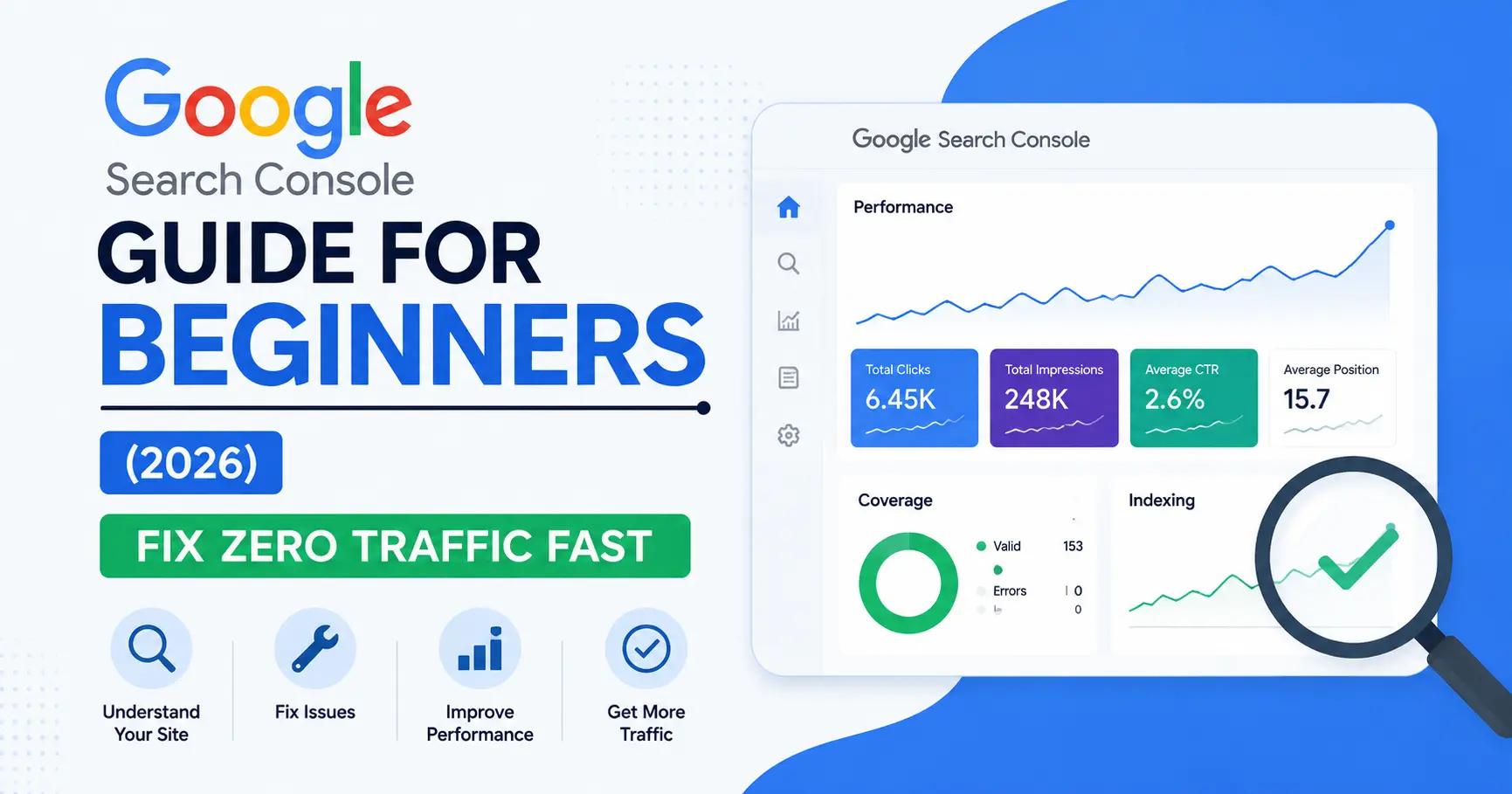
Click Performance in the left menu. This shows four numbers:
- Total clicks – how many times someone actually clicked to your site
- Total impressions – how many times your site appeared in search results (even if nobody clicked)
- Average CTR – the percentage of impressions that turned into clicks
- Average position – where your pages typically rank (lower number = better; position 1-3 is the top of page 1)
Warning: Not All Impressions Are Real People
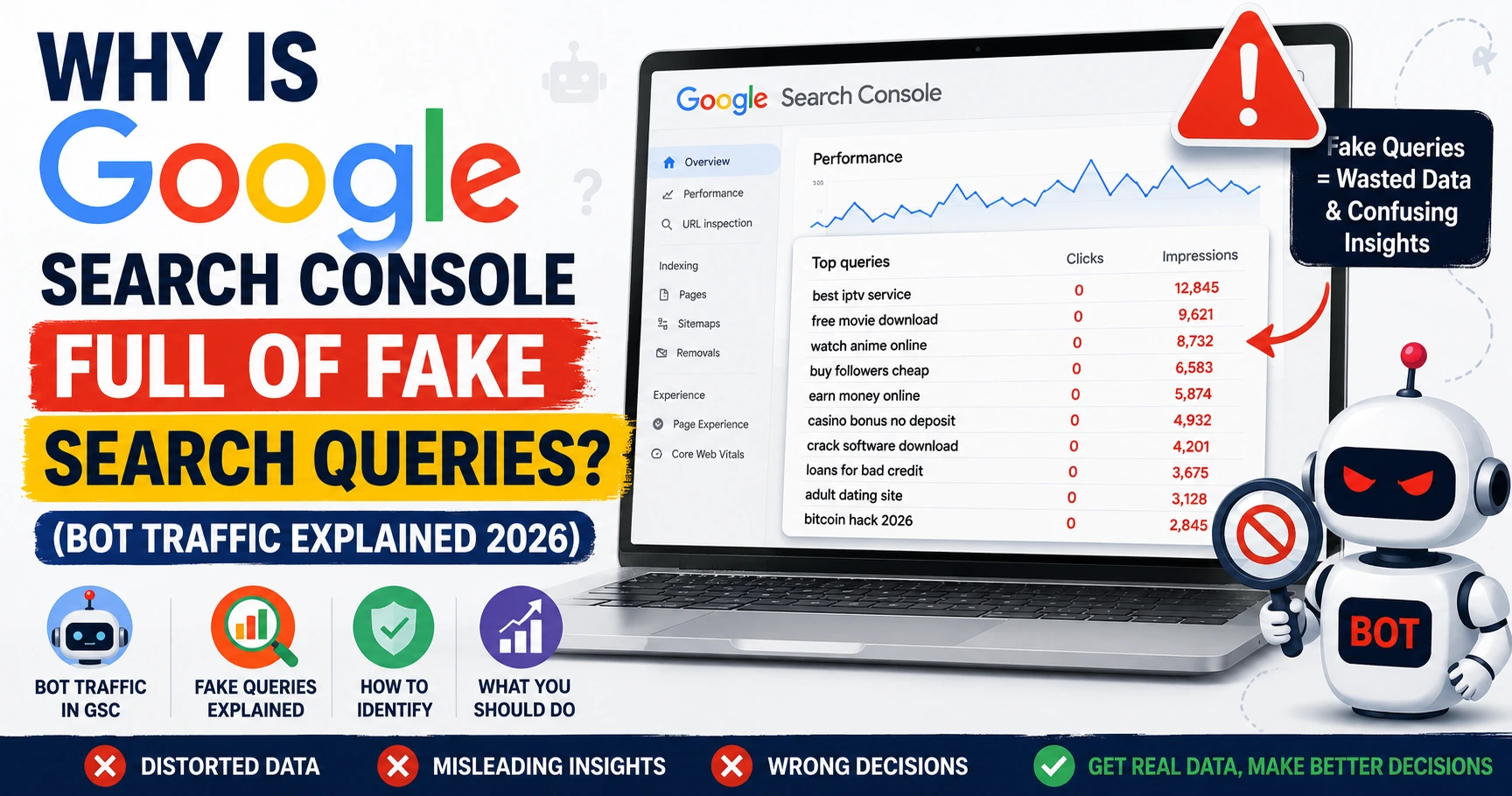
New websites often see strange search queries in their Performance report — things with site:, inurl:, or long strings of random hashtags and symbols. These usually come from bots and automated tools, not real visitors searching for your content.
How to spot fake traffic:
- The query contains search operators like
site:,inurl:, or-inurl: - The query is a random hashtag, symbol string, or unrelated foreign-language phrase
- It has impressions but the click count is always 0
What to do: ignore these rows completely when judging your progress. Focus only on queries that look like something a real person would type — normal words and questions related to your content. If your comment section is being targeted by these bots, install an anti-spam plugin like Akismet and turn on comment moderation.
Step 6: Fix the Real Reasons for Zero Clicks
If your pages are indexed and showing up in search (impressions exist) but nobody is clicking, the problem is usually one of these:
- Your title is boring or too generic. Titles like “SEO Tips” lose to “7 SEO Mistakes Killing Your Traffic in 2026.” Add numbers, years, or a clear benefit.
- Your average position is too low. If you’re ranking at position 15+, you’re likely on page 2. Most people never scroll that far. This needs more content depth and backlinks, not a quick fix.
- Your meta description doesn’t sell the click. Write a short, clear description that tells the reader exactly what they’ll get if they click. For a complete list of on-page fixes that improve both rankings and clicks, see our On-Page SEO Checklist.
A Simple Weekly Checklist for New Websites
- Publish new content consistently (aim for at least 1-2 posts per week)
- Request indexing for every new page in Search Console
- Check the Pages report for indexing errors
- Filter out bot/spam queries before judging your traffic
- Improve titles and meta descriptions on your lowest-CTR pages
- Build a few backlinks (guest posts, directories, social shares)
Don’t check your traffic daily. For a new site, weekly or biweekly is enough — daily checking just leads to stress over numbers that haven’t had time to move yet.
Frequently Asked Questions
How long does it take for a new website to get indexed by Google?
Usually a few days to a few weeks. Submitting a sitemap and manually requesting indexing for each page speeds this up significantly.
Why do I have impressions but zero clicks?
Either your average position is too low (page 2 or beyond), your title/description isn’t compelling enough, or a large chunk of your impressions are coming from bots rather than real searchers.
Is Google Search Console free?
Yes, completely free for anyone with a website.
How long until a new website gets real, steady traffic?
Most new websites take 3 to 6 months of consistent publishing before seeing meaningful organic traffic. Competitive niches like finance can take longer.
Final Takeaway
Zero traffic on a new website is normal, not a sign that something is broken. Use Search Console to confirm your pages are indexed, submit new content for faster indexing, ignore bot noise in your reports, and focus your energy on writing content real people are actually searching for. Traffic builds up steadily, not overnight.
At My Info Mint, we are not affiliated with any brand, product, or service mentioned on our website. Our goal is to provide informative and research-based content to help our readers. Please verify product or service information on the official website before making any decisions. The information provided is for educational purposes only.